Appearance: button, chat window, questions, form
Everything a customer sees before WhatsApp opens is on this page, and the preview on the right is a working copy — click through it exactly as a customer would. Hovering a settings card jumps the preview to the matching part.
Each card opens a panel in place rather than a new page, so the preview never leaves your side. The address bar follows along: reload and you land back in the panel you were in, browser Back steps out of it, and you can bookmark or send a link straight to one.
- Button — position, size, colour, and whether the label shows.
- Animation — a small motion the button repeats every few seconds: Pulse (a ring in your button colour), Bounce, or Shake. Off by default. The preview plays it as soon as you pick one, and on the storefront it stops the moment a visitor opens the chat — the point is to earn that first click, not to keep waving afterwards. Visitors who have asked their device for reduced motion never see it.
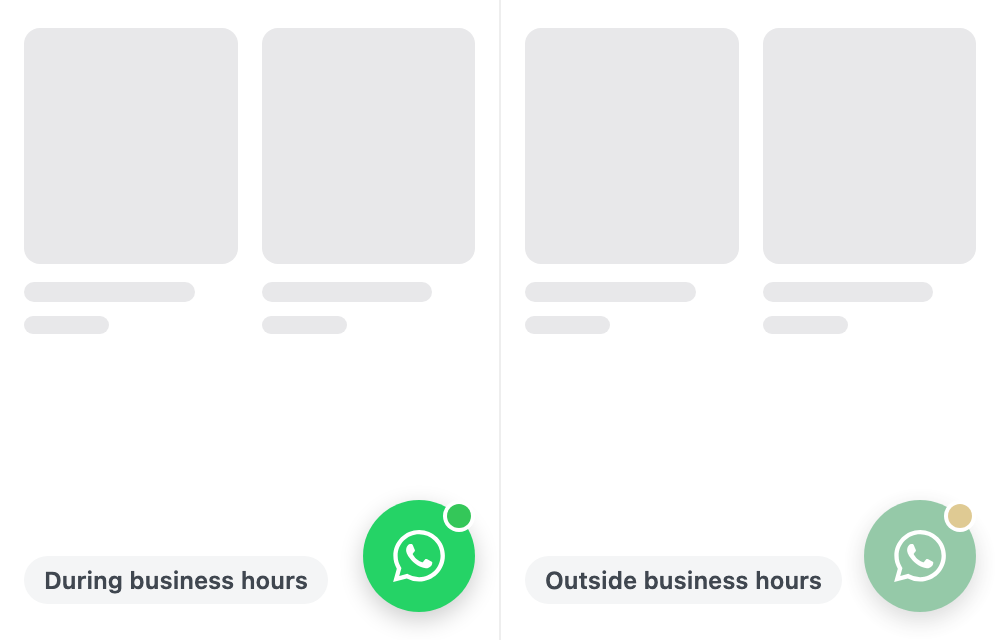
- Online dot — a small dot on the corner of the button: green during your business hours, amber outside them. A visitor sees that someone is there before deciding to click, instead of finding out only after opening the chat. Off by default; turn on Show online dot under Button and the preview shows it straight away.
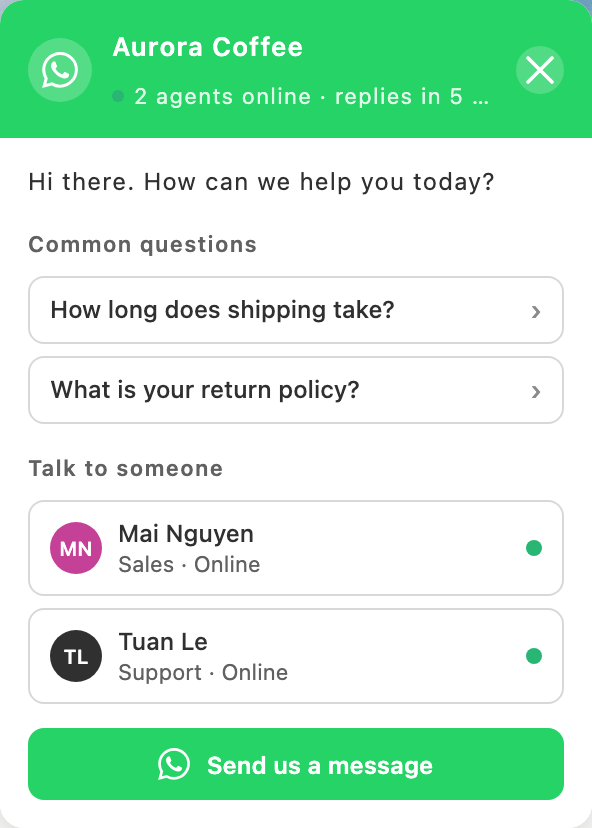
- Chat window — the WhatsApp mark in the header, the availability line, and the reply time you want to promise.
- Common questions — topics a customer can tap instead of typing. Picking one carries the question into the message, so you know what they need before they write a word.
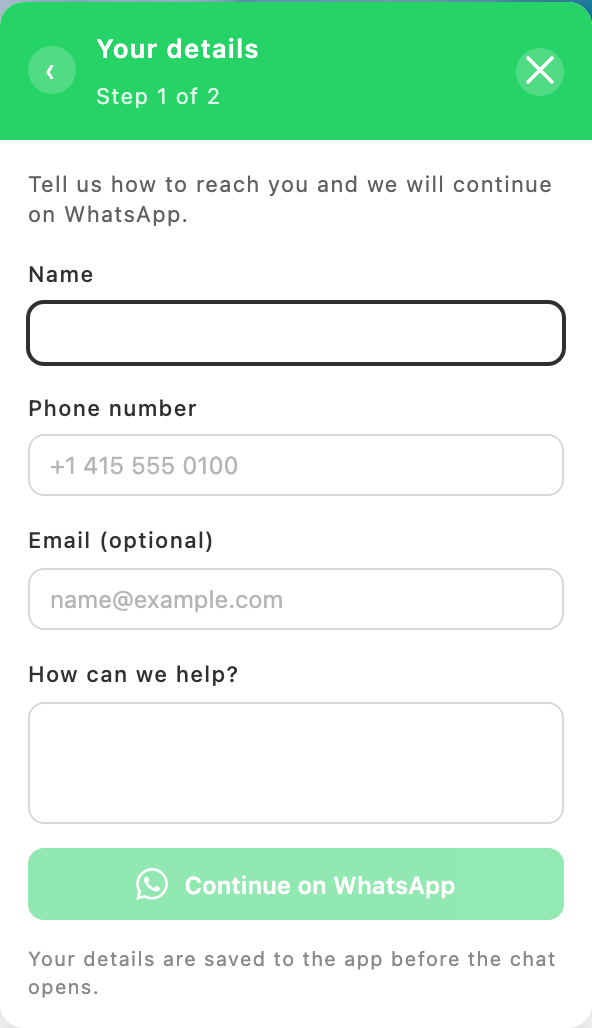
- Pre-chat form — collects a name and contact details before WhatsApp opens. Each field can be Required, Optional, or Off; the name is always required.
- Greeting bubble — a short message beside the button that invites a visitor to ask. Off until you turn it on; see Greeting bubble below.